Automating Authentication for Postman Requests/Collection
For this doc we will automate authentication(OAuth2 Password Grant) for all requests in a Postman Collection. This will:
Automatically obtain and refresh an OAuth2 access token using the Password Grant flow before each API request, ensuring a valid token is always used.
Uses Postman Concepts
- Pre-request Script: Runs automatically before every request in the collection (if set at collection level).
- Environment Variables: Store dynamic data like tokens, timestamps, URLs, credentials, and expiration times.
In script below we evaluate:
- Variable Nesting: Use
pm.variables.replaceIn()to resolve variables inside other variables (e.g.,Auth_Urlcontaining{{endpoint}}).
Environment Variables Used (set these in your Environment)
| Variable | Purpose | Example Value |
|---|---|---|
endpoint | Base URL and port of the auth server | 172.16.109.57:32701 |
Auth_Url | Full token URL, referencing {{endpoint}} | http://{{endpoint}}/auth/realms/cloud/protocol/openid-connect/token |
Client_Id | OAuth2 client ID | client_id |
Username | Username for password grant | parth2@coredge.io |
Password | Password for password grant | admin |
OAuth_Token | Stores current access token | (set dynamically by script) |
OAuth_Timestamp | Timestamp of when token was obtained | (set dynamically by script) |
ExpiresInTime | Token validity duration in milliseconds | (set dynamically or default 300000 ms = 5 min) |
How the below Pre-request Script Works
-
Check for valid token: Compares current time with
OAuth_TimestampplusExpiresInTime. If token is valid and present, skips refresh. -
Resolve nested variables: Uses
pm.variables.replaceIn()to replace{{endpoint}}inAuth_Url. -
Make token request: Sends a POST request to the OAuth2 token endpoint using password grant. Sends URL-encoded form data:
grant_type,client_id,username,password, optionallyscope. -
Handle response: On success, saves new access token and timestamp. Updates
ExpiresInTimebased on token expiry from the response. -
Logs: Helpful console messages for debugging token refresh status.
Copy the script to your postman Collection:
// Default expiration time to 5 minutes (in ms)
const DEFAULT_EXPIRES_IN = 300000;

// Retrieve token timestamp and expiration time from environment
const expiresInTime = Number(pm.environment.get("ExpiresInTime")) || DEFAULT_EXPIRES_IN;
const tokenTimestamp = Date.parse(pm.environment.get("OAuth_Timestamp") || 0);

// Check if token is expired or missing
if ((new Date() - tokenTimestamp) < expiresInTime && pm.environment.get("OAuth_Token")) {
    // Token is still valid; no need to refresh
    console.log("Access token still valid, skipping refresh.");
    return;
}

console.log("Access token expired or missing, requesting a new token...");

// Resolve Auth URL with nested {{endpoint}} variable
const rawAuthUrl = pm.environment.get("Auth_Url");
const authUrl = pm.variables.replaceIn(rawAuthUrl);

// Prepare OAuth request payload
const clientId = pm.environment.get("Client_Id");
const username = pm.environment.get("Username");
const password = pm.environment.get("Password");
const scope = pm.environment.get("Scope") || "";

pm.sendRequest({
    url: authUrl,
    method: "POST",
    header: {
        "Content-Type": "application/x-www-form-urlencoded"
    },
    body: {
        mode: "urlencoded",
        urlencoded: [
            { key: "grant_type", value: "password" },
            { key: "client_id", value: clientId },
            { key: "username", value: username },
            { key: "password", value: password },
            // Only include scope if it's set
            ...(scope ? [{ key: "scope", value: scope }] : [])
        ]
    }
}, function (err, res) {
    if (err) {
        console.error("Error while fetching access token:", err);
        return;
    }

    if (res.code !== 200) {
        console.error(`Token request failed with status ${res.code}:`, res.text());
        return;
    }

    const json = res.json();
    pm.environment.set("OAuth_Token", json.access_token);
    pm.environment.set("OAuth_Timestamp", new Date());

    if (json.expires_in) {
        pm.environment.set("ExpiresInTime", json.expires_in * 1000);
    }

    console.log("New access token obtained and saved.");
});
Final: Using the above setup with Requests
Here’s a step-by-step guide to set up collection-level Authorization in Postman using {{OAuth_Token}} we create in above script:
Step 1: Open your Collection settings
- In Postman sidebar, find your collection.
- Click the three dots (•••) next to the collection name.
- Select Edit.
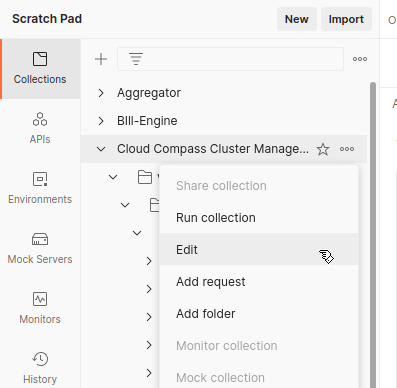
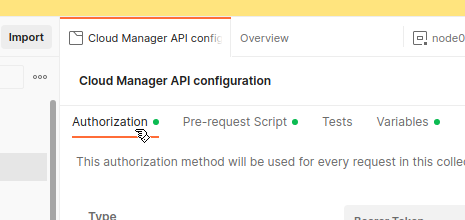
Step 2: Go to the Authorization tab
- In the Edit Collection modal, click the Authorization tab.
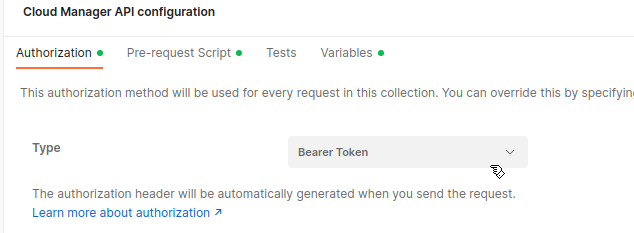
Step 3: Set Type to Bearer Token
- Click the Type dropdown.
- Select Bearer Token.
Step 4: Enter {{OAuth_Token}} as Token value
- In the Token field, enter:
{{OAuth_Token}}
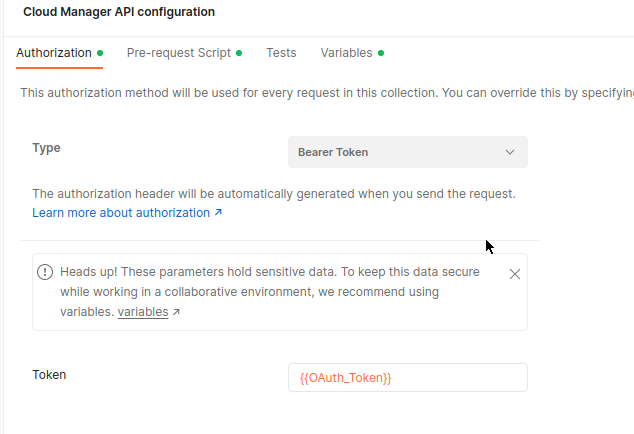
Step 5: Save your changes
- Click Save at the bottom right of the modal.
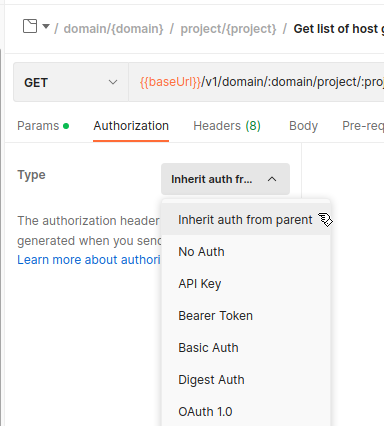
Step 6: Verify requests inherit Authorization
- Open any request in the collection.
- Go to its Authorization tab.
- It should show Inherit auth from parent.
Done!
Now every request in your collection will send the header:
Authorization: Bearer <your-current-OAuth-token-from-environment>
and your pre-request script ensures {{OAuth_Token}} is always fresh.
References: